

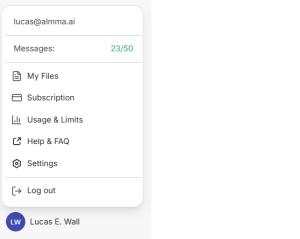
When you click on your profile icon or account name in the application, a menu like the one shown appears. This menu gives you quick access to important features and account controls. Let’s break it down so you know exactly what each part does.
1. User ID
At the very top, you’ll see your registered email address.
- This confirms which account you’re currently logged into.
- If you manage multiple accounts, this helps you quickly identify which one’s active.
2. Messages Counter
Below your email, you’ll see a Messages section like 23/50.
- The first number (23) tells you how many messages you’ve sent or used this cycle.
- The second number (50) is your maximum allowed messages for the current period.
- This helps you keep track so you don’t run out unexpectedly.
3. My Files
This section stores all files you’ve uploaded in your sessions.
- You can re-access past files without uploading them again.
- Useful for referencing old documents, images, or datasets.
4. Subscription
Here, you can view or update your plan.
- Check your current subscription type (Free, Pro, Enterprise, etc.).
- Upgrade, downgrade, or cancel your plan.
- See billing dates and manage payment methods.
5. Usage & Limits
This section lets you monitor how much of your account’s allowance you’ve used.
- Messages, file size limits, or special tool quotas are tracked here.
- Helps you plan usage and avoid surprises.
6. Help & FAQ
If you’re stuck or have a question, Help & FAQ is your go-to spot.
- Search for answers to common problems.
- Read guides, tips, and troubleshooting steps.
- Find contact options for customer support.
7. Settings
Settings let you customize your experience.
- Change display theme (Light/Dark).
- Adjust chat behavior, input style, or privacy settings.
- Configure personal preferences for a smoother workflow.
8. Log Out
Clicking Log out will disconnect you from your account.
- Ideal for switching to a different account.
- Always log out if you’re on a shared or public computer for security.
9. Profile Name and Icon
At the bottom, you’ll see your profile picture or initials and your display name (here it’s “Lucas E Wall”).
- This is how others might see you in collaboration features.
- Click here in some interfaces to quickly access profile editing.
In short:
This menu is your quick-access control panel — it holds your account info, usage tracking, essential tools, personalization options, and support links all in one place. Once you understand each option, navigating and managing your account becomes second nature.
Leave a Reply