

Custom prompts in AlmmaGPT let you save time, ensure consistency, and quickly reuse proven instructions across projects.
Whether you’re a creator, educator, or enterprise team, a well‑organized prompt library means you don’t have to rewrite your ideas from scratch every time.
Here’s how to set one up step‑by‑step.
Step 1 – Open the Prompt Library
Go to the Prompts section in AlmmaGPT and click Create Prompt.
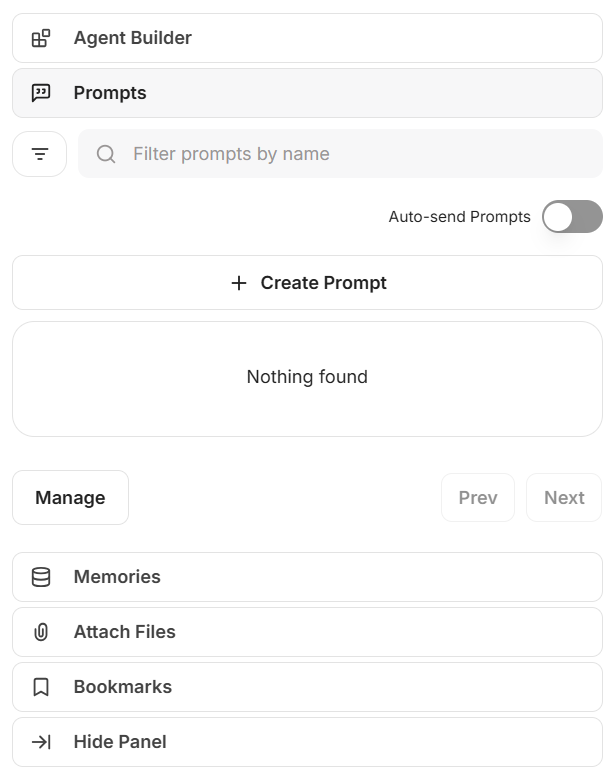
The following window will open.

Step 2 – Name Your Prompt
- Enter a descriptive, unique name in the Prompt Name field.
- This is how you will identify it in your library.
Examples:
- “Blog Intro Generator”
- “Weekly Lesson Summary”
- “RFP Requirements Extractor”
Step 3 – Write the Prompt Text
In the Text field, write the instructions you want the AI to follow.
Be clear and specific — this will be reused as‑is each time.
Using Variables for Flexibility
AlmmaGPT allows dynamic placeholders in your prompts using double braces {{ }}
For example:
Write a social media post about {{topic}} for an audience of {{audience_type}}.
When you use this prompt, AlmmaGPT will ask you to fill in those variables.
Special Variables You Can Use:
{{current_date}} – Today’s date and day of week
{{current_datetime}} – Local date and time
{{utc_iso_datetime}} – UTC date and time format
{{current_user}} – Your account name
Dropdown Variables for Controlled Choices: You can create custom dropdowns:
{{tone:friendly|professional|playful}}
When running the prompt, you’ll pick one of the listed options.
Step 4 – Add an Optional Description
Enter a short description (up to 120 characters) explaining the purpose of the prompt.
This is helpful for teams or shared prompt libraries.
Example:
“Generates a 200-word intro paragraph with a persuasive hook.”
Step 5 – Add an Optional Command
Commands are short triggers (up to 56 characters) to quickly call a prompt without searching for its full name.
Example:
- Command:
/intro→ instantly loads your “Blog Intro Generator” prompt.
Step 6 – Save Your Prompt
When you’re satisfied, click Create Prompt.
It’s now stored in your Reusable Prompt Library and can be:
- Run instantly from the prompt list
- Shared with your team
- Edited anytime for updates
Pro Tips for a Powerful Prompt Library
- Group by Purpose – e.g., Marketing, Education, Data Analysis.
- Name Clearly – Include audience or output type in the title.
- Test Prompts – Run them before saving to ensure optimal results.
- Use Variables – Keeps prompts reusable across scenarios.
- Document – Add descriptions so teammates know when to use each one.
✅ With these steps, you can build a prompt library that saves time, boosts output quality, and keeps everyone on your team aligned.
Next: Read Advanced File Handling in AlmmaGPT: How to Upload, Search, and Process Files with AI.
Leave a Reply