

The Settings menu is your control center for personalizing and optimizing your experience. Knowing exactly where to find it and how to tweak it ensures you get the most out of your workflow.
Accessing the Settings Menu
To open Settings, click on your profile menu in the upper-left or upper-right corner (depending on your interface layout). From the dropdown menu, select Settings.
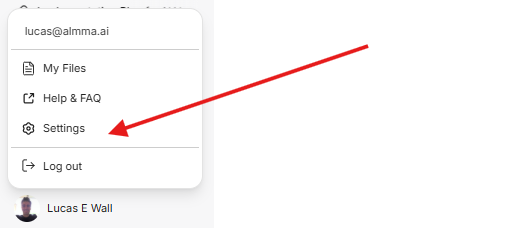
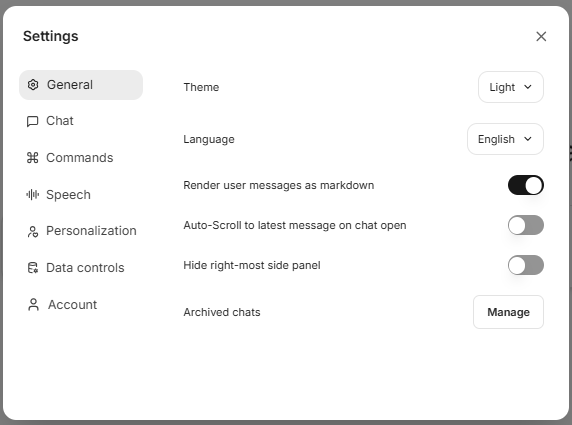
Once clicked, the Settings panel appears with different categories available in the left-hand sidebar.
General Settings
The General section controls the overall look and feel of your workspace, as well as some global behavior options:
- Theme – Switch between Light and Dark mode.
- Language – Select your preferred display language.
- Render user messages as markdown – Toggle whether your messages will display markdown formatting.
- Auto-Scroll to latest message on chat open – Enable to always jump to the newest messages in a conversation.
- Hide right-most side panel – Remove the far-right panel from the workspace for a cleaner view.
- Archived chats – Manage and revisit your saved conversations.

Chat Settings
The Chat section is all about customizing how messages appear and behave:
- Message Font Size – Choose from Small, Medium, or Large text for better readability.
- Chat direction – Select left-to-right (ltr) or right-to-left (rtl) based on language preference.
- Press Enter to send messages – Toggle if pressing Enter sends messages or adds a new line.
- Maximize chat space – Expand chat input area for better visibility.
- Center Chat Input on Welcome Screen – Adjust positioning of your input field on the home screen.
- Open Thinking Dropdowns by Default – Start with advanced reasoning menus already expanded.
- Always show code when using code interpreter – Keep coding transparency on at all times.
- Parsing LaTeX in messages – Enable mathematical notation rendering (may slightly affect performance).

Navigating Between Categories
Alongside General and Chat, you’ll find other sections:
- Commands – Customize quick-action commands and keyboard hotkeys.
- Speech – Configure voice input and output settings.
- Personalization – Adjust how the workspace adapts to your preferences.
- Data controls – Manage privacy and security settings.
- Account – Review personal details, subscriptions, and other account-level controls.
Switching is as simple as clicking the category name in the left-hand panel.
Why These Settings Matter
Customizing your Settings to match your workflow offers:
- Efficiency – Save time by setting behaviors and layouts that match your habits.
- Comfort – Reduce eye strain or optimize reading for longer sessions.
- Control – Manage how your information and workspace behave according to your needs.
The right settings turn a generic interface into a personalized, high-efficiency workspace.
Leave a Reply